Setting up a .NET Core API and React.js Frontend

The following presumes you have the .NET Core 2.2 SDK, Node.js, and create-react-app installed. If you do not, take a moment to install before progressing.

Somewhere on your machine, create a folder, I’m going to create TestApp. Using the command line, navigate into this directory, as that’s where we’re going to create the two applications.

To create the .NET app named TestApi in a folder named server, simply run dotnet new webapi -n TestApi -o server

Similarly, to create a React app named client in a folder by the same name, run npx create-react-app client

When that’s finished, you’ll need to open up the React App’s package.json and add the following at the end: "proxy": "https://localhost:5001"

The reason we have to add the proxy directive is because, at least by default, the .NET API will run on https://localhost:5001 whereas the Webpack Dev Server will run your react app on http://localhost:3000, and so we need to instruct it where to proxy API requests to. Deploying to a server is a topic for another time.

To test this out, you’ll need two command line windows. The first in TestApp/server where you’ll need to run dotnet run, the second in TestApp/client where you’ll need to run npm run start.

Then, in your React app, probably in App.js, you can make a call to the API like so

import React, { useEffect } from 'react';
import './App.css';

function App() {
useEffect(async () => {
const response = await fetch('/api/values');
const data = await response.json();
console.log(data);
});

return (
<div className="App">
{/** omitted */}
</div>
);
}
export default App;

With this, when your component mounts, it will fire off that request to the .NET API and send the response through to the console.
Creating a TeamCity Discord Bot with Node.js 10

I recently had to create a Discord bot to interact with a TeamCity server, however it proved a little difficult to find information on exactly how you might go about this. Also, while this guide is for interacting with TeamCity, you could change it to do whatever you need.

Project Structure

/
├── bot/
│ ├── app.js
│ └── bootstrap-theme.min.css
└── auth.json

Installing Dependencies

We need to install the TeamCity API library, or at least it makes life easier, and the latest version of the discord.io bot, otherwise it won’t connect to Discord.

npm i woor/discord.io#gateway_v6 teamcity-rest-api --save

Create a Discord Bot and Retrieve a Token

Follow this guide to actually create the Discord Bot, then save the credentials in auth.json in the following format:

Writing the Actual Bot

The bot is fairly straight forward, so I won’t go through the code in great detail, though will touch on using embeds later.

Using Embeds

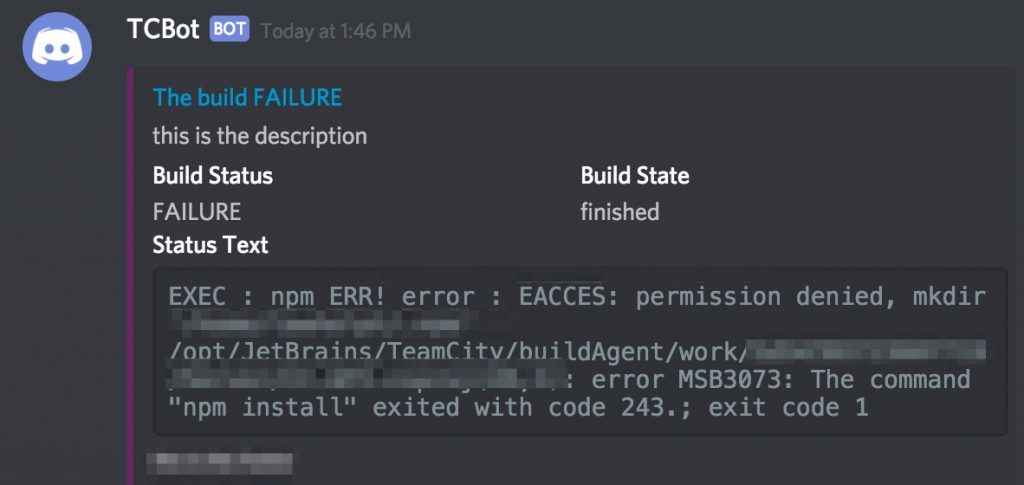
Sending a message is great, however, if you’ve used other integrations or bots for Discord or Slack, then you’re probably used to a richer experience. To achieve this, we can post an embed to a channel, which itself contains an array of fields.

Posting an embed is simple, though there are two caveats to be aware of;

  1. You can use Discord markdown in the field values, but need to make sure you escape characters where required, such as backticks, and
  2. When sending an embed with a Discord.io bot, you need to set the message to an empty string
tc.builds.get({ id: buildId }).then(res => {
  bot.sendMessage({
    to: channelID,
    message: '',
    embed: {
      color: 6826080,
      title: `Build Status ${res.status}`,
      fields: [
        {
          name: 'Build Status',
          value: `${res.status}`,
          inline: true
        },
        {
          name: 'Build State',
          value: `${res.state}`,
          inline: true
        },
        {
          name: 'Status Text',
          value: `\`\`\`${build.statusText}\`\`\``,
          inline: false
        }
      ]
    }
  });
});

With that, you’ll get an output of roughly something like this:

Naturally, it’s possible to create something better than this, but the provided example is only a very quick example of how it can be done.